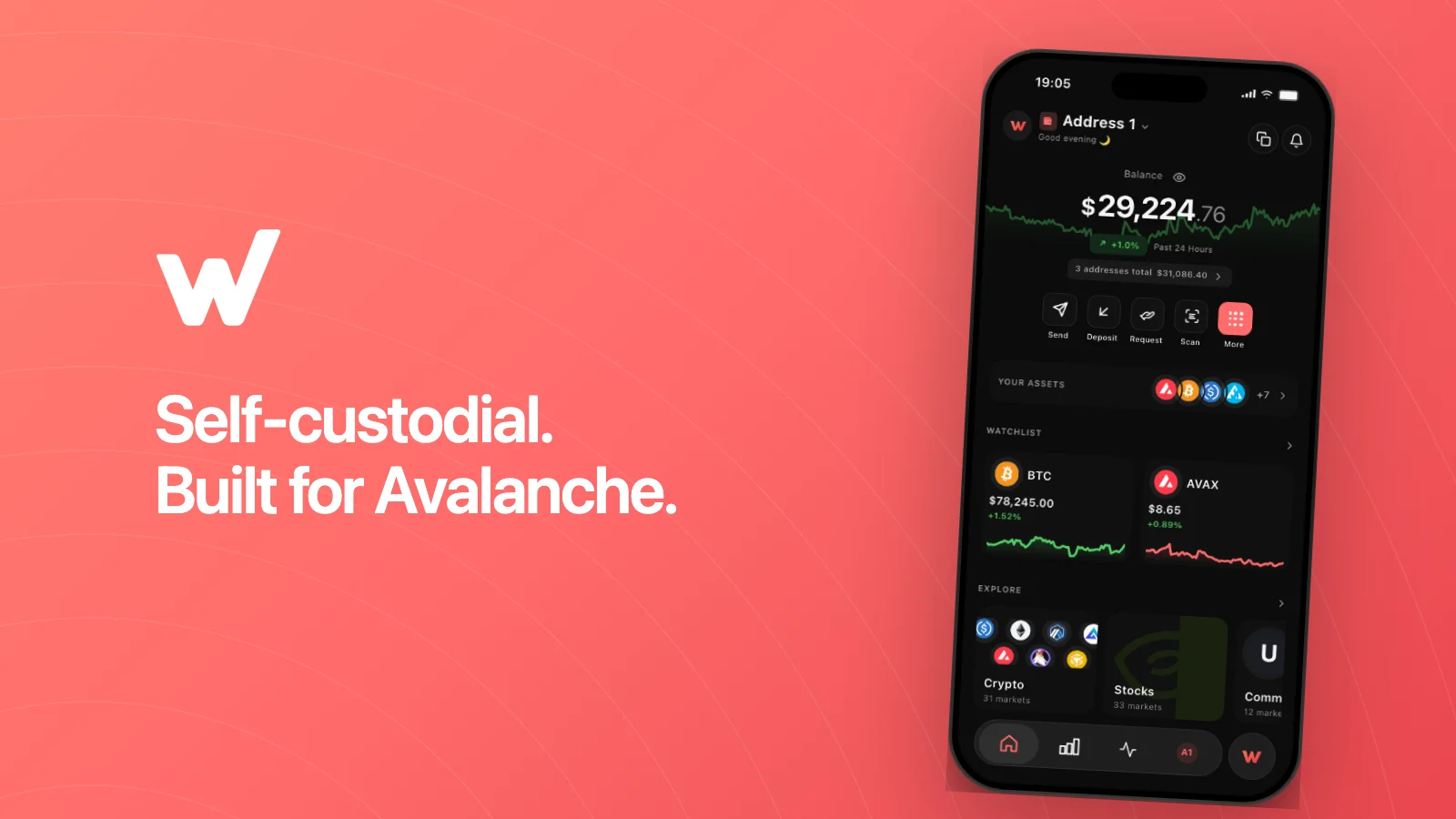
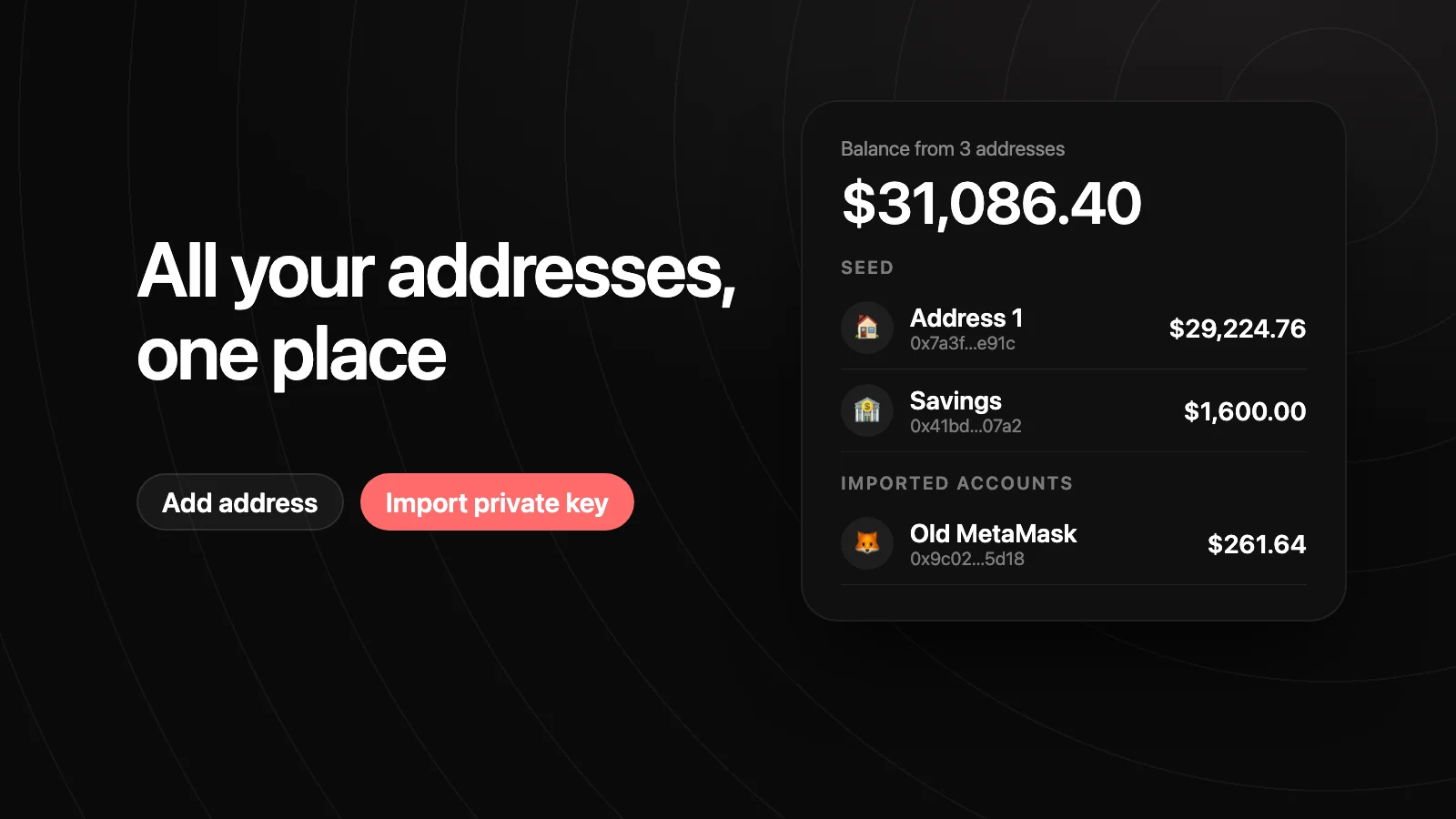
Most people end up with more than one address: one for daily use, one for savings, an old one from a browser wallet. In Wyro, they all live in Account Center: one list, one combined balance, and the controls to add, import, rename, hide, or remove addresses.
Opening Account Center
There are two ways in:
- On Home, tap the “3 addresses total” chip under your balance. It appears once you have more than one address.
- Tap your address name at the top of the screen (for example Address 1) to open the address switcher, then go to Account Center.
Wyro also sends you there when something needs an address, for example staking with an address that isn’t set up for Avalanche yet.
One balance across every address
The top of Account Center shows your total, labeled Balance from N addresses, with a balance history chart. Home shows the same total in the addresses total chip, while the big number on Home is the address you have selected.
Hidden addresses are left out of the total. Hiding is for addresses you want to keep but not count: an empty address you no longer use, or one you only watch. Hidden addresses aren’t deleted, and you can show them again any time.
Your addresses
Under Your addresses, Wyro groups them into two sections:
- Seed: addresses derived from your recovery phrase (Address 1, Address 2, and so on).
- Imported accounts: addresses you added with a private key.
With more than a few, three tools help:
- Search addresses by name or by address.
- Sort addresses by Number (Address 1, 2, 3…), Value (highest balance first), or Name (A to Z).
- Hide zero hides addresses with no balance.
You can rename any address and give it an emoji, so “Address 3” becomes “Savings 🏦”. Names and emojis are only stored in your app.
Adding an address from your recovery phrase
Tap Add / Import, then Add address. Wyro derives the next address from your recovery phrase, so your existing backup already covers it and nothing new needs writing down.
When you first restore a recovery phrase, Wyro runs discovery (you’ll briefly see “Discovering…”). It checks your addresses in order and adds the ones you’ve used before, stopping after three unused addresses in a row. Your old balances show up without adding each address by hand.
Importing a private key
Use this for an address that isn’t part of your recovery phrase, like an account you created on its own in a browser extension.
- In Account Center, tap Add / Import, then Import private key.
- Paste the hex private key and, if you like, give it a name.
- Enter your PIN.
The key is encrypted with your profile’s PIN and stays on your device. The address then appears under Imported accounts and counts toward your total. If you’re moving a whole wallet rather than one account, importing a MetaMask, Core, or Rabby wallet walks through both options.
Back up imported keys separately. Your recovery phrase only restores the addresses derived from it. An imported key is a separate secret: if you lose your phone and only have the recovery phrase, imported accounts don’t come back. Keep the original key (or the wallet it came from) safe.
What an imported key can and can’t do
An imported private key gives you a C-Chain address: you can hold tokens, swap, use Earn and Borrow, and connect to dapps. It has no P-Chain address, so it can’t stake AVAX natively. To stake, use an address from your recovery phrase or your Ledger and move AVAX to the P-Chain from there.
Removing an address
You can remove an imported account from Account Center. Wyro asks you to confirm, then deletes the key from this device. The funds stay on-chain at that address, so you can import the key again later. Every profile keeps at least one address, so the last one can’t be removed.
Addresses from your recovery phrase aren’t deleted; hide the ones you don’t want to see.
Ledger profiles
If you use Wyro with a Ledger, Account Center works the same way, with two differences:
- Add address asks you to confirm on the device. Compare the address on your Ledger with the one in Wyro, then approve.
- Before an address can transfer to the P-Chain or stake, it needs Avalanche set up once in the Ledger’s Avalanche app. Wyro prompts you, and you’ll see “Transfers and staking are now available for this address” when it’s done.
Private-key import isn’t available in a Ledger profile, since the point of a Ledger is that keys never live on the phone. Using a Ledger with Avalanche on your phone covers the rest of the setup.
FAQ
Does my recovery phrase back up imported private keys?
No. It only restores addresses derived from it. Back up each imported key separately, or keep access to the wallet you imported it from.
Can an imported private key stake AVAX?
Not natively. An imported key has a C-Chain address but no P-Chain address. Stake from an address that comes from your recovery phrase or your Ledger.
Does hiding an address delete it?
No. Hidden addresses are only left out of the list and the combined total. Show them again any time. Removing is a separate action, and only for imported accounts.
Where are imported keys stored?
On your device, encrypted with your profile’s PIN. Wyro doesn’t send them anywhere.
Why do some old addresses appear after I restore my wallet?
That’s discovery. Wyro checks your recovery phrase’s addresses in order and adds the ones with past activity, stopping after three unused addresses in a row.