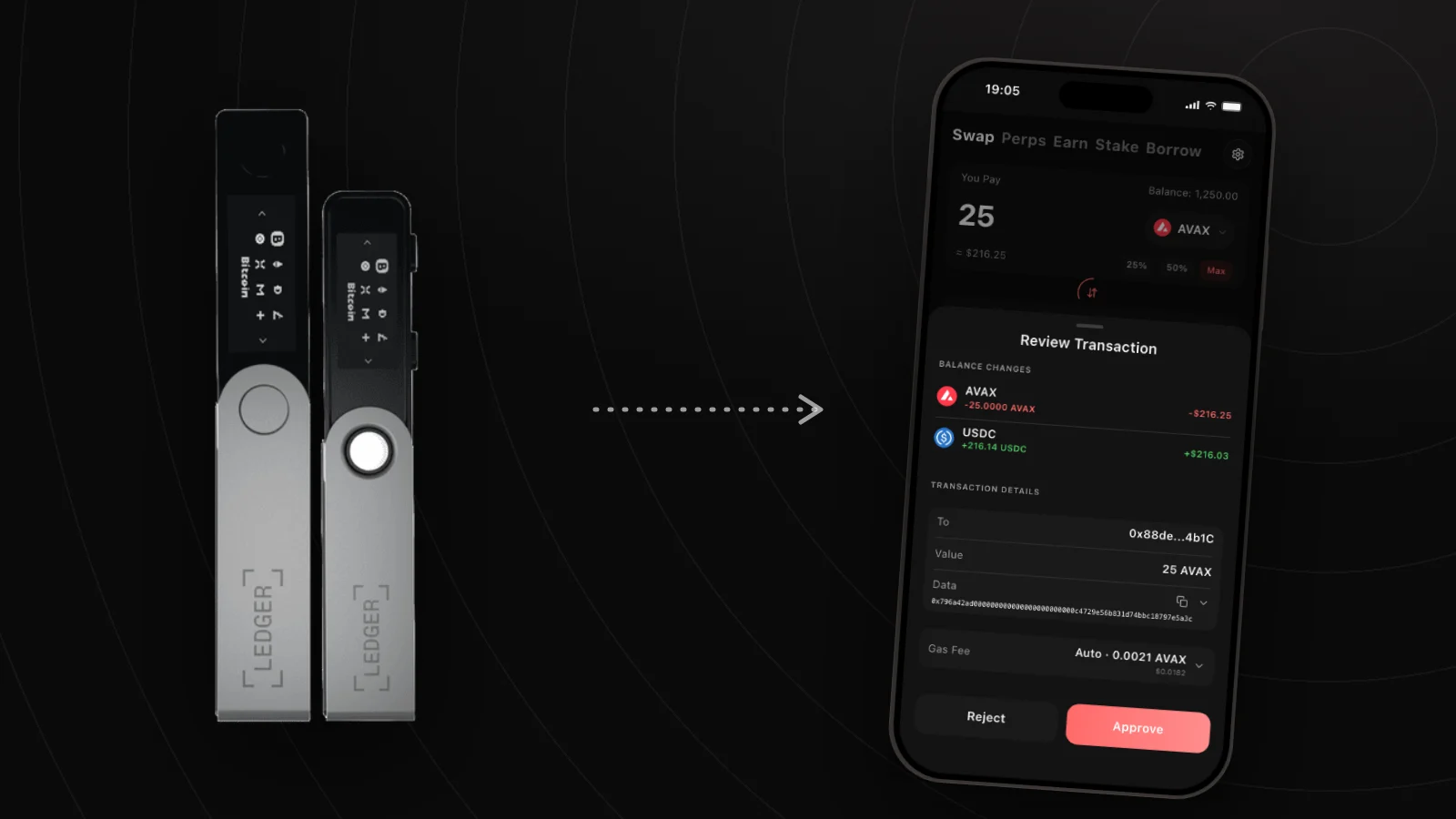
To use a Ledger with Avalanche on your phone you need three things: a Ledger with Bluetooth (Nano X, Stax, or Flex), the Ethereum and Avalanche apps installed on it, and a mobile wallet that supports Ledger over Bluetooth. Your keys stay on the Ledger, and you approve every transaction on the device's own screen.
This guide covers which devices work, why Avalanche needs two Ledger apps, how clear signing works, and how to pair and sign with a Ledger in Wyro.
Which Ledger devices work with a phone
Phones talk to a Ledger over Bluetooth, so USB-only models are out. Ledger's device support matrix lists which models have it.
| Device | Bluetooth | Works with Wyro |
|---|---|---|
| Nano X | Yes | Yes |
| Stax | Yes | Yes |
| Flex | Yes | Yes |
| Nano S Plus | No | No (USB only) |
| Nano S | No | No |
Wyro is built and tested for the Nano X, Stax, and Flex. If you have a newer Bluetooth model, contact us before relying on it.
Why there are two Ledger apps for Avalanche
Avalanche's Primary Network has three chains. The C-Chain is EVM-compatible and uses 0x addresses, like Ethereum. The P-Chain (where staking happens) and the X-Chain use different transaction formats and addresses that start with P-avax1 or X-avax1.
A Ledger signs each format with a dedicated app, installed from Ledger's companion app:
- Ethereum app. Signs EVM transactions and messages. In Wyro it handles C-Chain transfers, swaps, and dapp browser requests.
- Avalanche app. Signs P-Chain and X-Chain transactions and can also derive your C-Chain address. In Wyro it's needed to move AVAX between the C-Chain and P-Chain and for native staking.
Both apps derive the same C-Chain address from your Ledger's recovery phrase, so switching between them doesn't move funds. Avalanche's own Ledger support article notes that the P-Chain and X-Chain need a wallet that supports the Avalanche app.
Clear signing vs blind signing
Blind signing means approving a transaction your device can't fully display, often a contract call shown only as a hash. Clear signing shows the action, amount, and recipient or contract in readable form on the Ledger's screen, which malware on your phone can't change. Ledger explains the trade-off in its guide to blind signing.
How Wyro handles it:
- Wyro sends transactions to the Ledger for clear signing and never asks you to enable blind signing.
- If the Ledger can't display a transaction or typed-data message in readable form, Wyro stops with "Ledger could not clear-sign this transaction" instead of falling back to a blind signature.
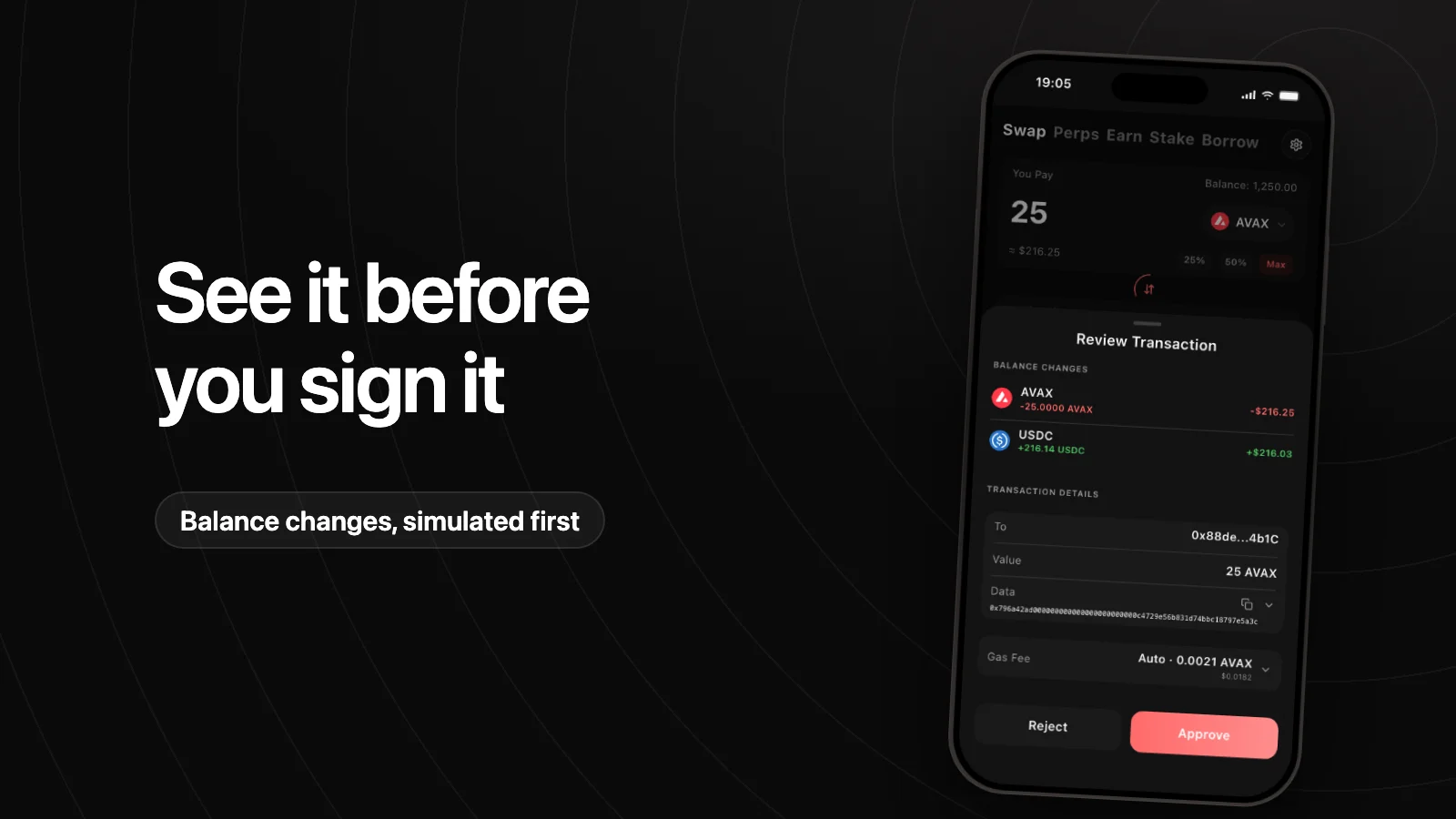
- Before you sign, Wyro also simulates C-Chain transactions with Tenderly and shows the expected balance changes. P-Chain transactions aren't simulated, so read those details on the Ledger carefully.
The Ledger screen is the final check. Compare the address and amount there with what you meant to do.
How to pair a Ledger with Wyro
Before you start, update your Ledger's firmware, install the Ethereum and Avalanche apps from Ledger's companion app, and charge the device.
- In Wyro, tap Get Started, enter your access code, and choose Connect Ledger on the Choose wallet type screen.
- Allow Bluetooth access when your phone asks. On Android this is the Nearby devices permission.
- Unlock your Ledger, make sure Bluetooth is on, and open the Ethereum app.
- Pick your device from the list of nearby Ledgers.
- On Initialize Applications, set up at least one app: Ethereum (transfers, swaps, and browser requests) or Avalanche (EVM interactions, X/P transfers, and staking). Setting up both now saves a step later.
- For each app, open it on the Ledger, tap Show address, then Verify on device. Check the address in Wyro matches the one on the Ledger, and approve.
- Set Your PIN. It locks the Wyro app on your phone; your keys stay on the Ledger.
If you skip the Avalanche app, you can set it up later from the Account Center. Until then, Transfer and staking show as needing setup.
Signing with a Ledger in Wyro
When you confirm an action, the approval sheet shows the details, network fee, and simulation, and the button reads Continue on Ledger. Open the right app on the device (Ethereum for most C-Chain actions, Avalanche for P-Chain actions), check the details on its screen, and approve. Multi-step actions, such as a token approval followed by a swap, ask you to confirm each step on the device.
With the Avalanche app set up, you can move AVAX to the P-Chain and delegate or validate from a Ledger account. See how to stake AVAX.
| Feature | Ledger account in Wyro |
|---|---|
| Send, swap, recurring swaps, earn, borrow | Yes, confirmed on the device |
| C-Chain ↔ P-Chain transfer and native staking | Yes, with the Avalanche app set up |
| Dapp browser requests | Yes, clear-signed only |
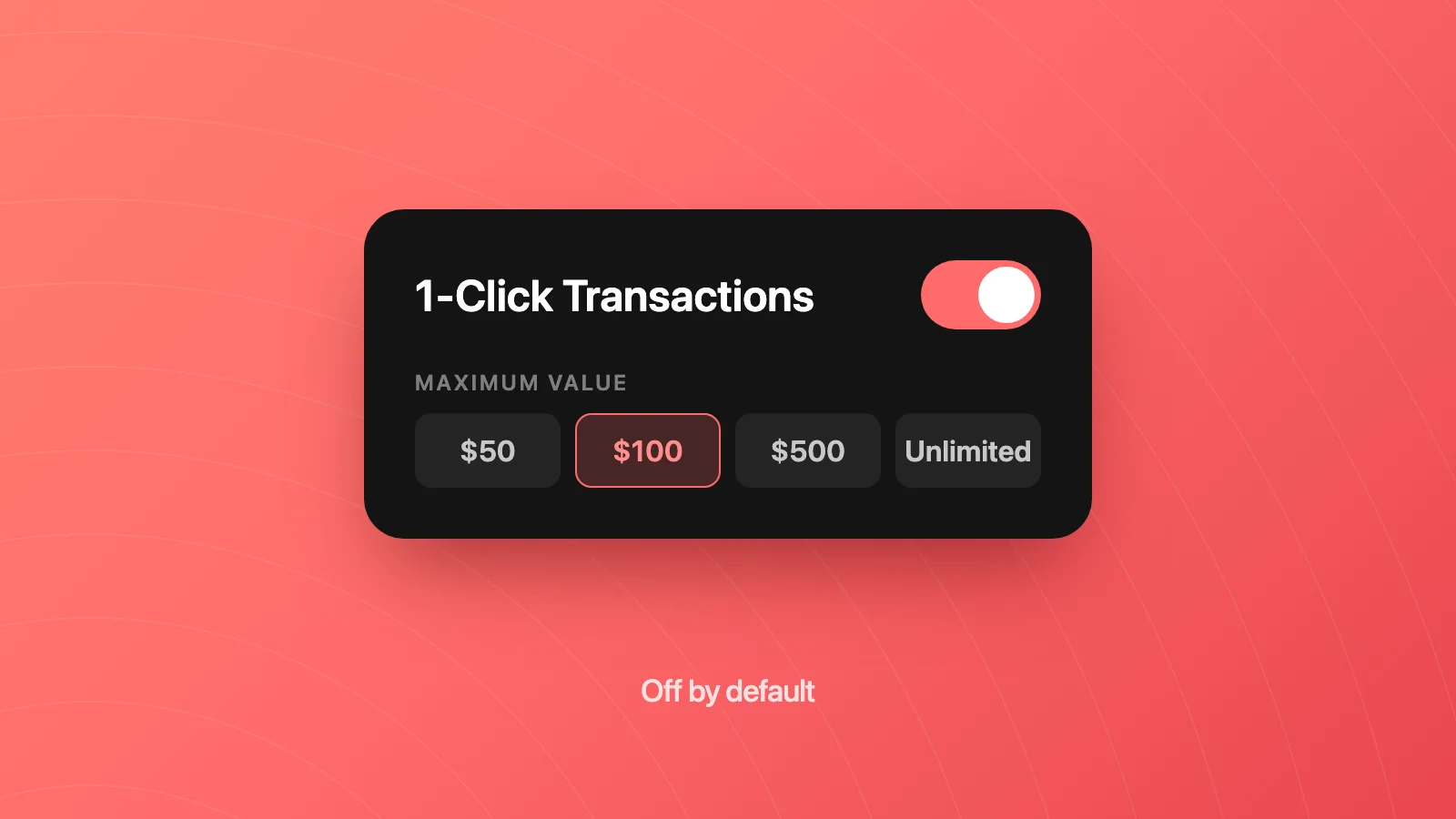
| 1-Click transactions | No. Every action needs confirmation on the Ledger |
| Import a private key | No |
| Export recovery phrase or private key | No. Keys never leave the Ledger |
Your Ledger's 24-word recovery phrase is still your only backup. Keep it offline and never type it into a phone, a computer, or a website; neither Ledger nor Wyro will ever ask for it. More on how Wyro protects keys on the security page.
Troubleshooting
- Wyro can't find my Ledger. Unlock the device, check Bluetooth is on in the Ledger's settings, and keep it close. If another app on your phone is connected to the Ledger, close it.
- "Bluetooth permission needed" while Bluetooth is on. The app permission is separate from system Bluetooth. Tap Open Settings, allow Bluetooth (Nearby devices on Android) for Wyro, then return and tap Try again.
- "Timed out." Unlock the Ledger, open the Ethereum app, and try again. To reconnect later, go to Profile, then Hardware Wallet, and tap Reconnect Ledger.
- "Ledger connection was interrupted." Keep the device unlocked and nearby, keep the Avalanche app open during P-Chain actions, and don't let the screen sleep before you approve.
- "Ethereum and Avalanche apps returned different EVM addresses." Both apps should derive the same address. Make sure you're using the same device, and update both apps.
- "Ledger could not clear-sign this transaction." Update the firmware and the relevant app. Some contract calls can't be shown in readable form yet, and Wyro won't fall back to blind signing.
FAQ
Can I use a Ledger Nano S Plus with my phone?
Not over Bluetooth. The Nano S Plus connects by USB only. On a phone, Wyro supports the Ledger Nano X, Stax, and Flex.
Do I need the Avalanche app or the Ethereum app on my Ledger?
For C-Chain transfers, swaps, and dapps, the Ethereum app is enough. For moving AVAX to the P-Chain and native staking, you also need the Avalanche app. Installing both is the simplest setup.
Can I stake AVAX with a Ledger on my phone?
Yes, in Wyro, once the Avalanche Ledger app is set up for your account. You move AVAX to the P-Chain and approve the delegation or validation on the Ledger.
Is it safe to connect a Ledger over Bluetooth?
Your private keys never leave the Ledger, and every transaction must be approved on the device's own screen. Bluetooth only carries the unsigned transaction and the signature. Always check the details on the Ledger before approving.
Should I enable blind signing on my Ledger?
Only for a transaction you fully understand and trust, and turn it off afterwards. Wyro doesn't need it: it uses clear signing and shows an error when a transaction can't be displayed.